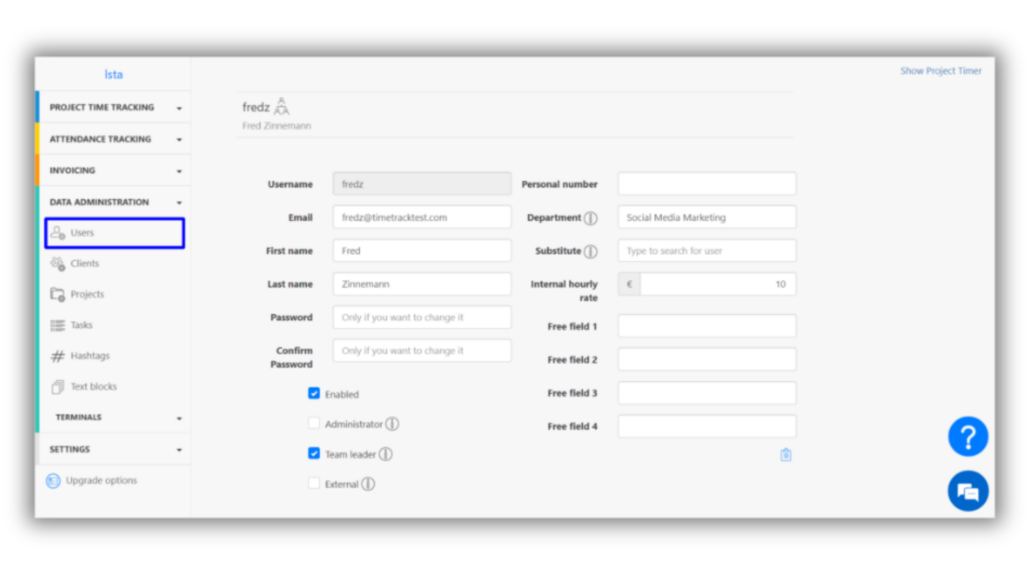
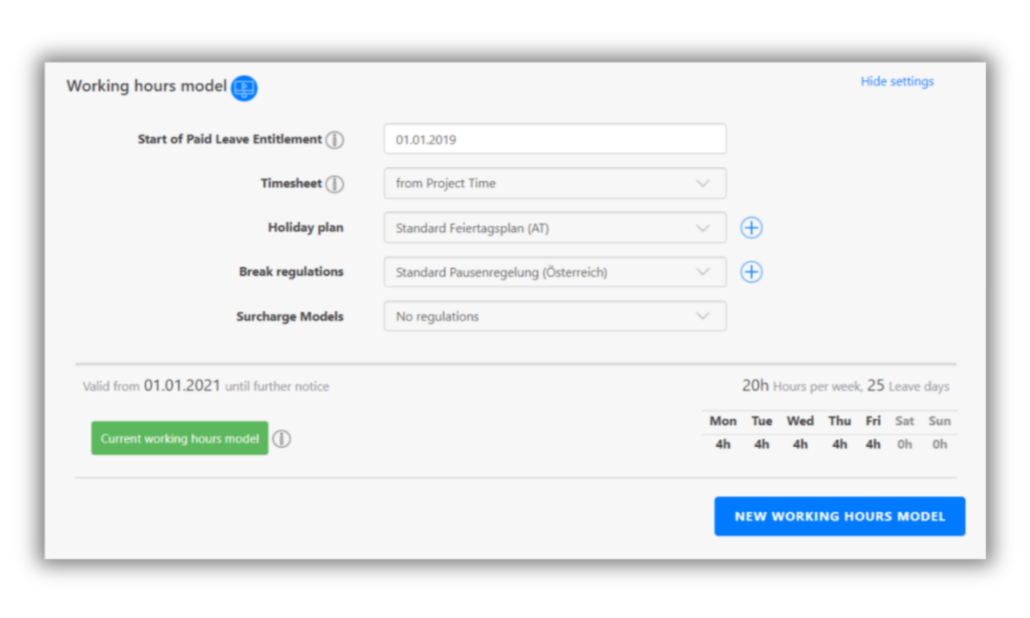
Important: For each user, specify whether the timesheet is created based on working or project times. In TimeTrack, a distinction is made between legal working hours/attendances and project times. (If you are only interested in project times, employees must track their working times under the Project Time Tracking menu item. However, if you are only interested in the legal working hours/attendances of the employees, then the employees only need the time clock, which can be found in the Attendance Tracking menu.)
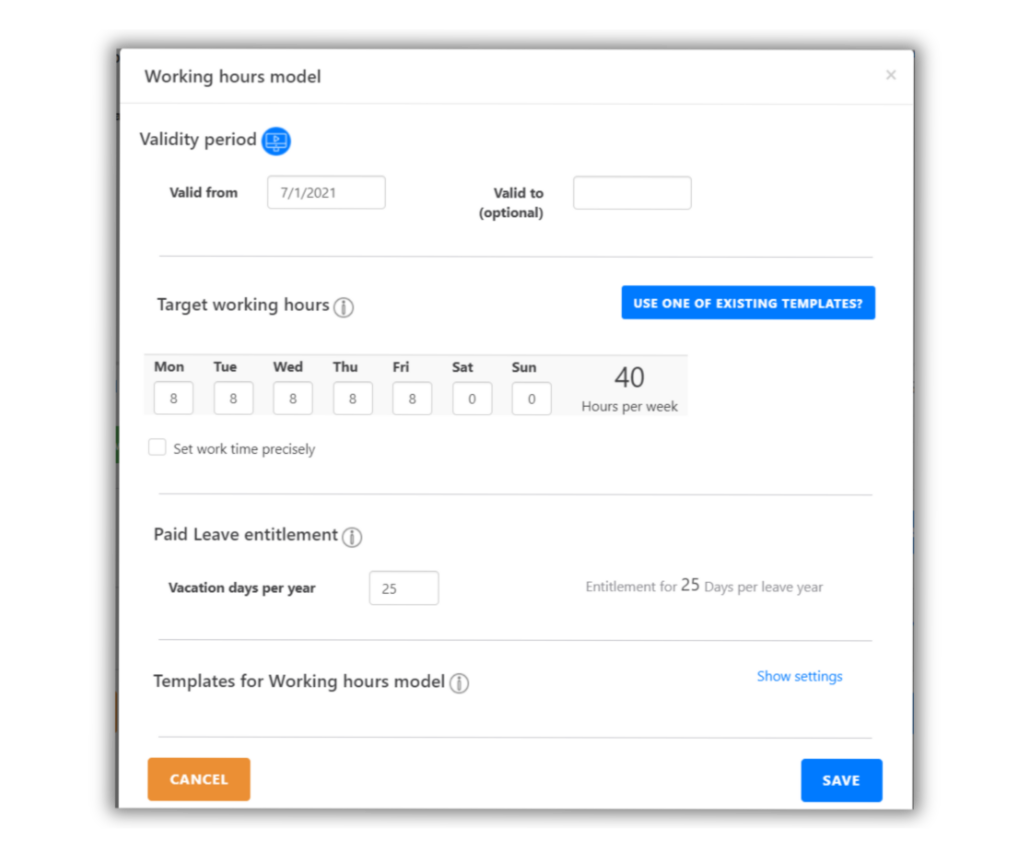
When creating a new working hours model, you should pay attention to the following points:
- “Valid from” – here you define when employees joined the company. Otherwise, the minus hours of the last few months will be displayed unless you enter all past working hours retrospectively. You can also create several working time models for one employee by optionally defining the period by the “Valid to” field. The system will automatically, adopt on the new validity day, the subsequent working time model that has been stored, and will take into account all changes compared to the old model, such as the vacation entitlement, etc.
- Fill in the weekly schedule with the target working hours,
- Calculate leave entitlement – depending on the location of your company, employees are entitled to a different legal leave entitlement.
- You have the possibility to save each working time model as a template – this is especially useful if many users have the same model.