


Access Management
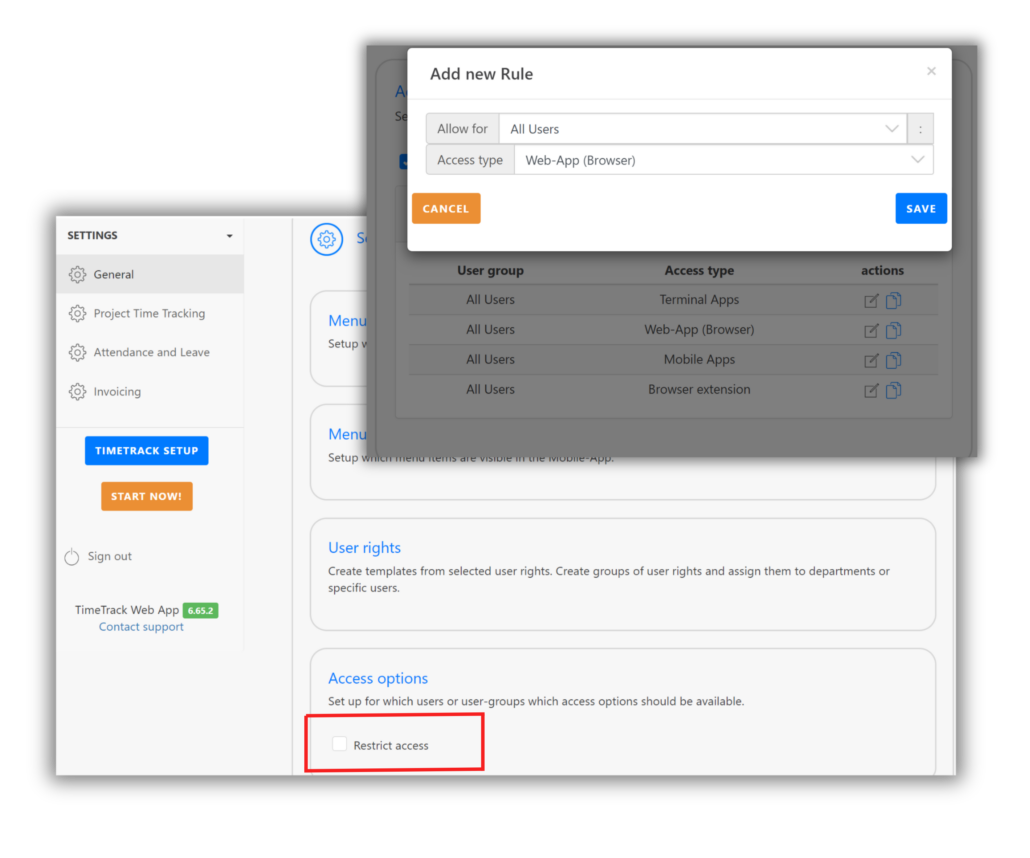
In TimeTrack, you can manage user access and restrict access types for specific user groups. Go to the Settings > General > Setup > Access options.
First, enable access restrictions and create access rules where you define user groups and access types. These rules specify which users can access the TimeTrack account and from which device.
Change Log: Source of Entry
In the TimeTrack Changelog, you can track who has clocked in or out, or recorded/edited a time entry or attendance, and when and from which device this was done.
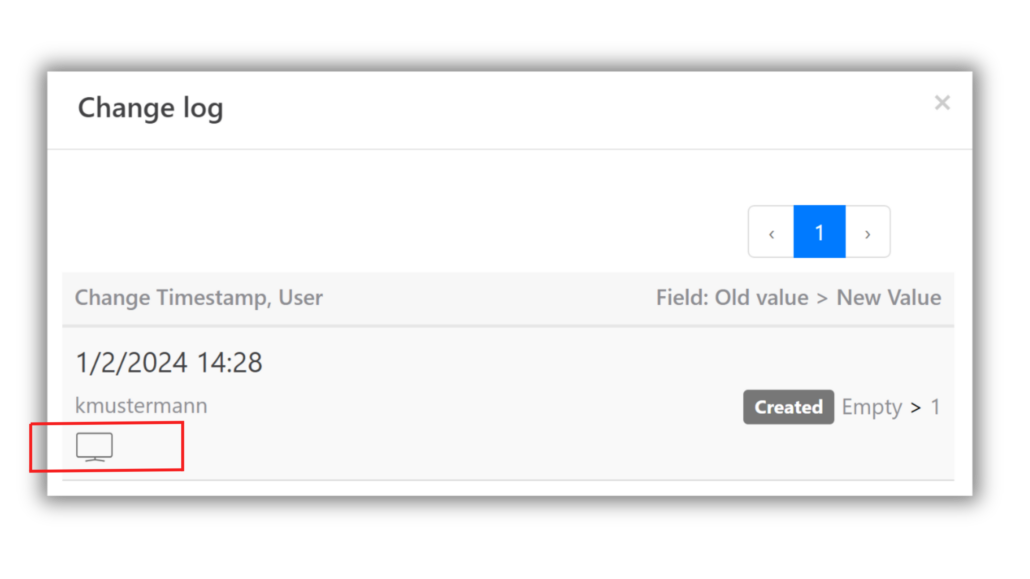
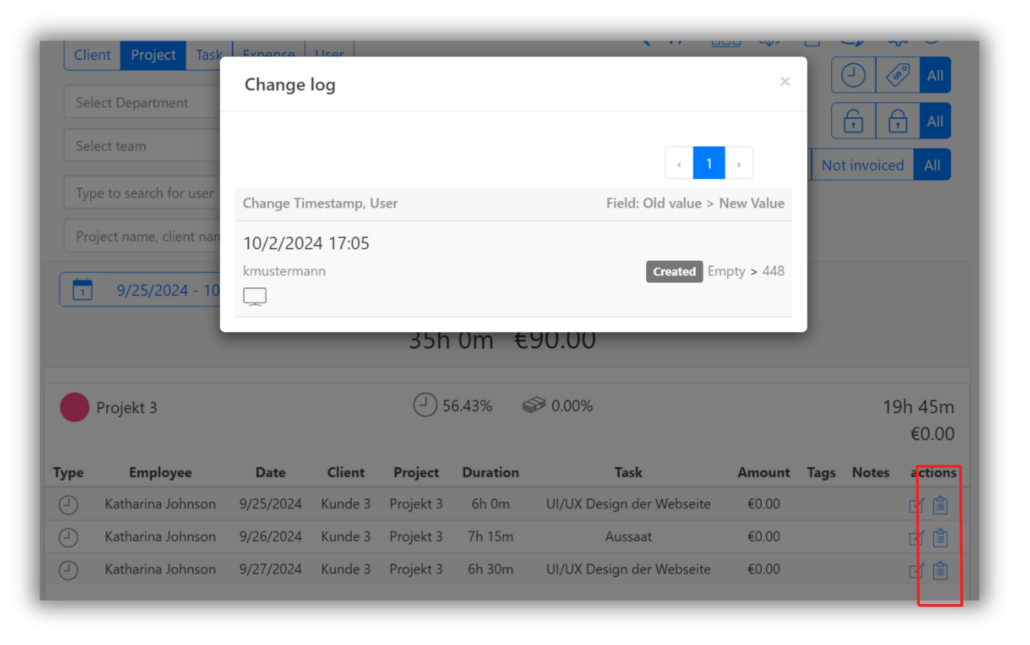
Change Log for Time Entries (Project Time Tracking)
You can view the change log under the “Reports and Analysis” menu. In the “Actions” column, click the clipboard icon to open the change log. The same option is available in the “Weekly View” for time entries.
Change Log for Attendances (Working Time Tracking)
You can access the change log under the “Attendances” menu by switching to the attendance list view. In the “Actions” column, click the clipboard icon to open the change log.
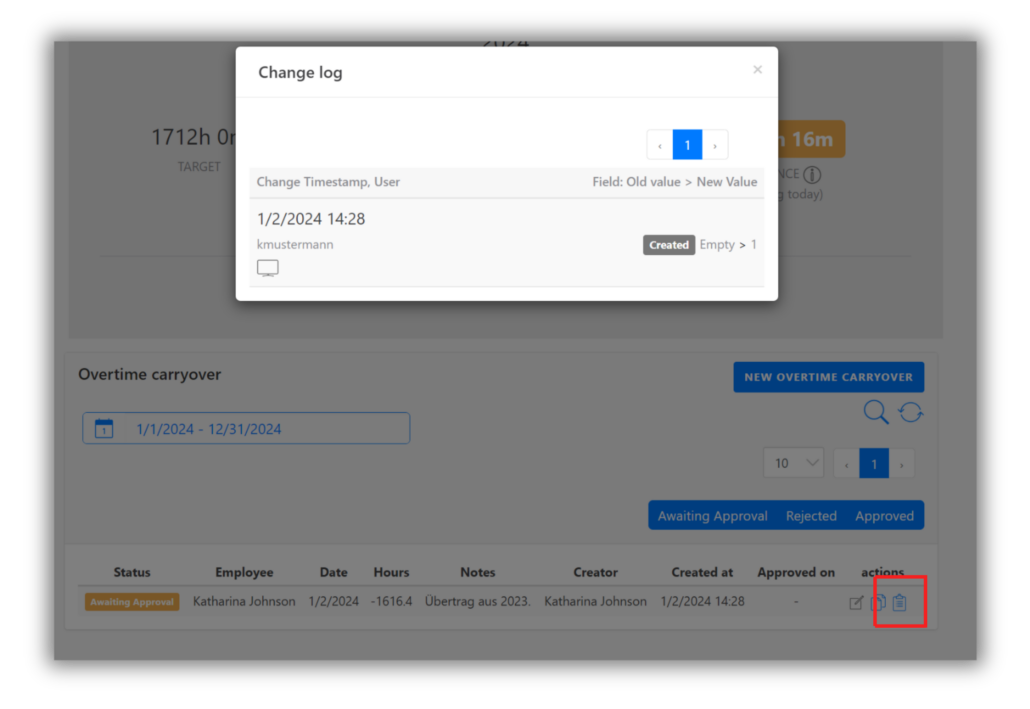
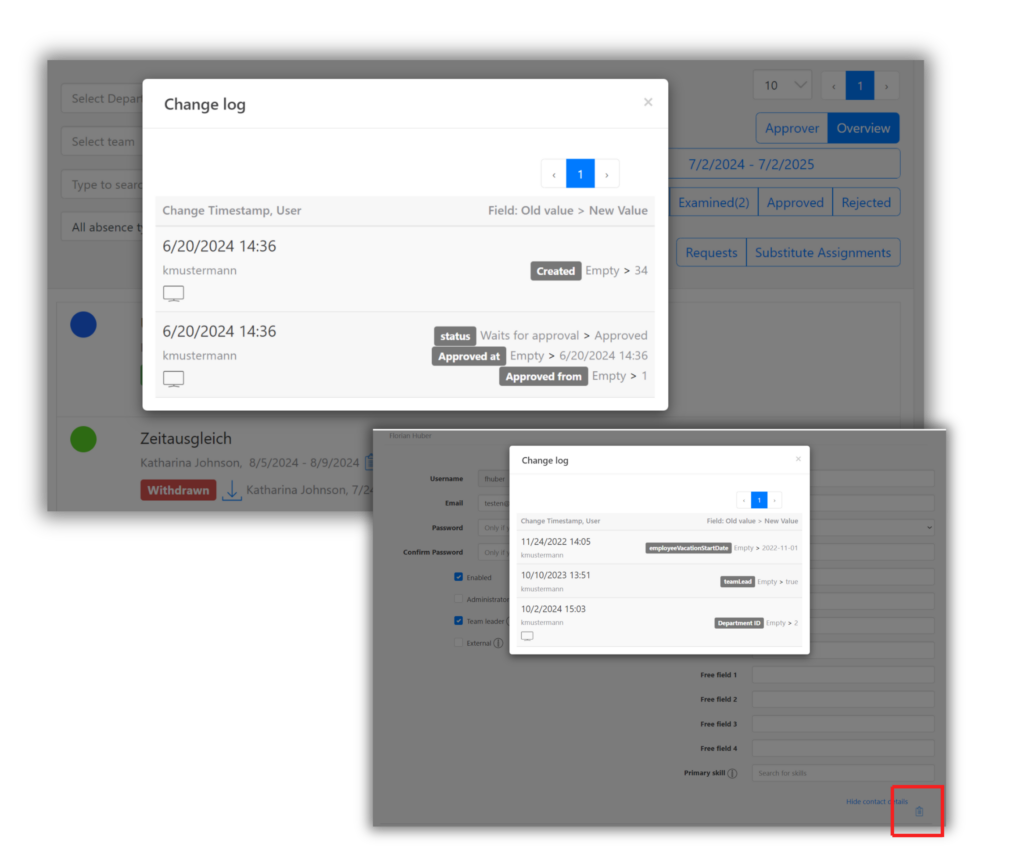
Change Log in Other Areas
In TimeTrack, you can also access the change log in other areas of the software. This is done via the same clipboard icon. A change log is available for time corrections, assigned overtime, absence requests, and user profiles.

Do you have any questions?
We are happy to assist you!
Contact Polina from our support team: